What privacy settings should kids use on social media?
The safest privacy settings for kids are a private account, location turned off, messages from friends only, profile hidden from search and suggestions, online status off, and tags only after approval. Many apps start more open than that, so check the settings when you join and again after every big update.
▶ Try it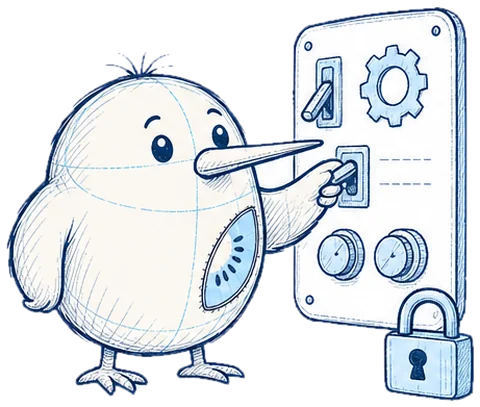
Why it matters
Lots of apps start out wide open. You'll set the key switches yourself: a private account, location off and messages from friends only, and you'll check them again after updates.
In 5 minutes you'll be able to
- Private account, location off, messages from friends only.
- Lots of apps start open. You close them up.
- After every update, quickly check your settings.
What you'll practise
Secure your profile
This is your new profile on a photo app. Set everything to safe and press “Check”.
- Private account
- Show location on posts
- Allow messages from everyone
- Show profile in search and suggestions
- Show online status
- Tags only after you approve them
Settings check
A few questions about your settings.
The app just had a big update. What do you do?
- Have a quick look in settings to see if everything's still right (Answer)
- Nothing, setting it up once is enough forever
Your account is private. Someone you don't know wants to follow you. What do you do?
- Decline. I only accept people I actually know. (Answer)
- Accept, more followers is cool
- Accept if we have three friends in common
Why is location often already switched on in a new app?
- Because apps want to collect lots of data (Answer)
- Because the law says it has to be
After the update
The app has updated and shows this pop-up. Tap everything you should switch off or say no to.
Photo app
New in this update!
Friend Map: friends can see where you are
Already switched on for you 📍
New stickers and colour filters 🎨
Sync your contacts to find more friends
Remember
Check your settings after every app update.
Lots of apps start open. You close them up.
Key facts
- The UK Children's Code (Age Appropriate Design Code) says online services likely to be used by children must set privacy to “high” by default and switch geolocation off by default, unless there is a compelling reason not to. · Source: ICO, Age Appropriate Design Code (Children's Code)
- The Children's Code took effect on 2 September 2020, and apps, games and social media had to conform with it from 2 September 2021. · Source: ICO, Age Appropriate Design Code: executive summary
- In the EU, online platforms that minors can use must put in place appropriate measures to ensure a high level of privacy, safety and security for them. · Source: EU Digital Services Act (Regulation (EU) 2022/2065), Article 28
- App updates can add new features or change existing ones, so settings you chose once are worth checking again after a big update.
Updated:
Questions people ask
How do I make my child's social media account private?
Open the app's settings, look for Privacy, and switch on “Private account”. Then turn off location sharing, limit messages to friends, and hide the profile from search and suggestions.
Should kids turn off location on social media?
Yes. Location on posts and live location maps can show where a child lives, goes to school or is right now. Keep it off and share your location only with family, if at all.
Is a private account enough to keep you safe?
It helps a lot, but only if you're choosy about who you accept. Anyone you let in can still see, screenshot and share your posts.
How often should you check your privacy settings?
When you first join, and again after every big app update, because updates can add new features that start switched on.
Related terms